Essay
Beauty in DVD Menus
- 2096 words
Look at many early DVD releases, and you’ll see interactive menus touted as a selling point. Coming from VHS (or LaserDisc), which had no menus to speak of, this was a genuine improvement. That isn’t to say all DVDs had interactive menus, however. Many of the earliest releases just entered straight into their content, and the same is true of some cheaper releases.
However, once DVD became widespread, publishers started to really embrace the capabilities the format afforded them. The format first released in late 1996; however it wasn’t until the 2000s that they really kicked off. With the medium’s strengths and foibles known, players widely adopted, and technology ready to handle the task, DVDs hit their stride. With this came some brilliant and memorable menus.
Resolution & Aspect Ratio
In NTSC regions video on DVD almost always has a resolution of 720 × 480 pixels, while in PAL regions they’re almost always 720 × 576 pixels. These specific resolutions can be traced back to the D-1, a digital recording video standard which stored uncompressed component video. It was a major leap in real-time, high-quality recording when it released in 1986 and quickly achieved ubiquity. It derived its resolution from the Rec. 601/BT.601/CCIR 601 standard from 1982.
Other resolutions are possible, however are rarely used for having worse quality and generally being a poor trade-off. You may notice that NTSC’s resolution of 720 × 480 pixels is a ratio of 3:2 and that PAL’s is a resolution of 5:4. The DVD has metadata tags telling the playback device how to then stretch the video to the desired aspect ratio for correct appearance in viewing. This is the difference between Storage Aspect Ratio (SAR), which is the ratio on the disc, and Display Aspect Ratio (DAR) or Pixel Aspect Ratio (PAR), which is the ratio in presentation.
Due to the transition from 4:3 aspect ratios on home displays to 16:9, there were a lot of fluctuations in DVD presentation. From widescreen that was forced to fit within a 4:3 area via letterboxing, to pan and scan, to anamorphic widescreen, there was variation in presentation. With DVD menus, we see exactly the same as was true in the transitioning era of broadcast television, where critical information was kept within the 4:3 safe area, while non-critical, flavour imagery was within the 16:9 only area.
Even releases long after most people had migrated to widescreen, 16:9 displays continue to keep everything within this small safe area. It became a major design consideration of DVD menus that has stuck around even if no longer strictly necessary.
Menu Features
DVD menus can take many forms, though they tend to have a fairly typical set of options. More often than not, a play button, a chapter/scene/episode select, special features or extras, and settings, including subtitle, language, audio, and picture options. At the very simplest, these are displayed in a list with a static image background. At the most decadent, there are full custom animations or acting with diegetic menus and layers of content designed specifically for the DVD – oodles of extra content and hidden additions crammed into every nook until the disc can’t hold anything more.
Being developed in the mid-1990s, DVDs are fairly simple in terms of technical capabilities. The picture shown by a DVD is a standard MPEG-2 video stream. For interactive elements, like menu items which highlight when hovered, or an overlay on the presentation, subpictures are used. Subpictures are 2-bit, meaning they only support four colours at a time. These colours are pulled from a palette, which is a defined set of 16 colours. The transparency can also be altered by adjusting the contrast level. Subtitles are handled by the same means. Interestingly, they’re graphics too – not text. Douglas Dixon’s DVD Authoring Terminology has a nice overview of many of the finer technical details.
Within the DVD Virtual Machine (DVD VM), there are sixteen General Parameter Registers (GPRMs). These are variables which hold 16-bit integers, allowing a tiny bit of memory for some details, such as chosen settings. Beside the GPRMs are twenty-four System Parameter Registers (SPRMs), which are read-only and are managed by the DVD player itself, storing the device-level details. The DVD VM Interaction Machine, which allows handling what happens on user interaction, is extremely basic, making the ability for people to make such interesting, expressive, and complex menus very impressive. DVD games1 particularly exploited all the memory and interaction functionality to the fullest extents possible.
Menus often feature looping clips and audio that don’t quite seamlessly repeat or have abrupt endings, which are the subject of much nostalgic reminiscing, with many stories online of people waking in early hours of the morning to find a DVD menu on loop.
Some publishers had a degree of consistency across their DVD catalogue. One DVD menu feature ingrained deep into the back of my mind is Disney’s FastPlay. Designed to make their DVDs more accessible, especially to children potentially unable to manage the remote, it automatically starts playing the disc’s content without need for viewer interaction. In function, this really means that it often plays trailers before the feature presentation, leading many viewers to avoid it.
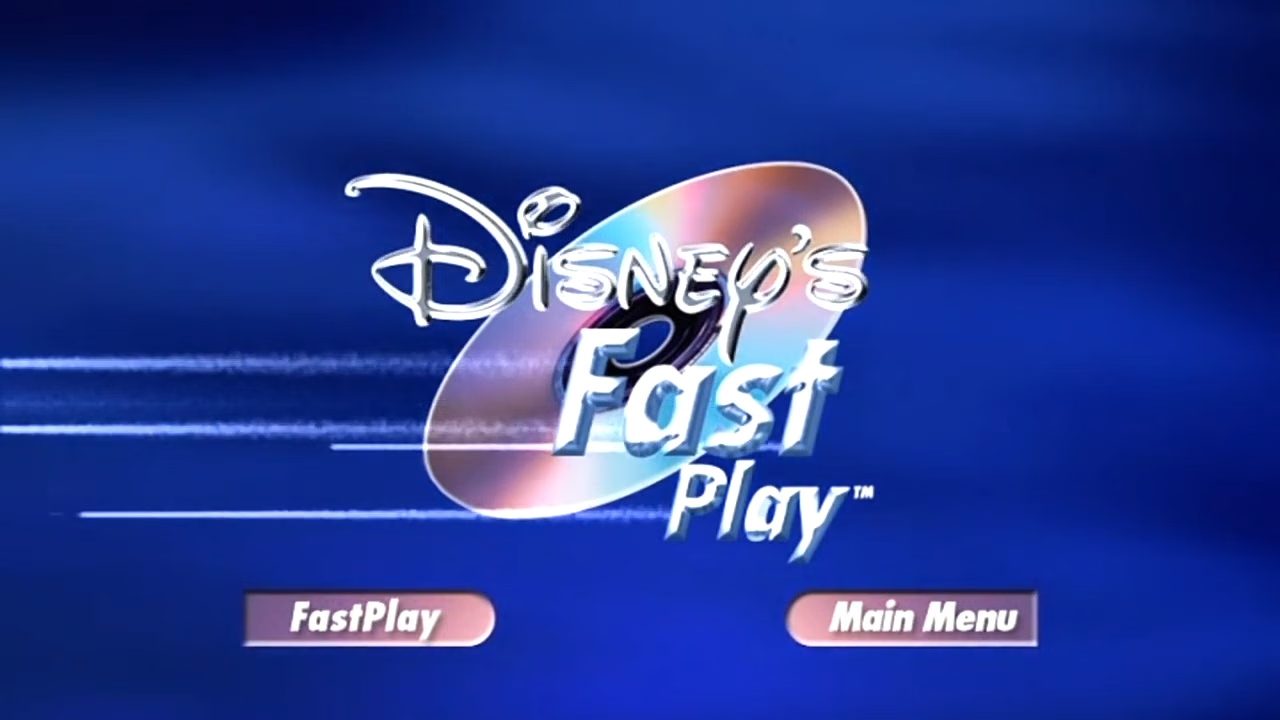
FastPlay supporting DVDs open with Tinkerbell flying onto the screen while a voiceover states:
This Disney DVD is enhanced with Disney’s FastPlay. Your movie and a selection of bonus features will begin automatically. To bypass FastPlay, select the ‘Main Menu’ button at anytime. FastPlay will begin in a moment!
Debuting at the same time in 2004, many Disney DVDs often also feature what they call EasyFind menus, which provide a consistent set of options with a consistent set of accompanying graphics for ease of use.
More modern DVD releases often forgo additional special features. Even standards like most setup options and scene/chapter selection are often absent as discs are spat out quickly, crammed into a template. Special features are reserved for the more expensive Blu-ray releases.
Memorable Menus
Scooby-Doo 2: Monsters Unleashed had a very fun menu. The main screen showed Scooby Doo and various monsters messing about in an old mining town, and when selecting a menu item, it would play a transition into another place from the film with further animations of Scooby-Doo fooling around. Each section had full custom 3D animations, and two games playable directly on the DVD player were included on the disc.
The first, Behind-the-Mystery Mystery: The Mystery of the Missing Pants, could be started in a special feature and then required you to navigate through the DVD’s menu to find an icon of pants to continue along the story. The next, much more complete game was The Scooby-Doo Monsters Unleashed Challenge, which had you as the player driving around in the Mystery Machine to various locations from the film, navigating through the locations, and collecting clues that would help unravel the mystery.
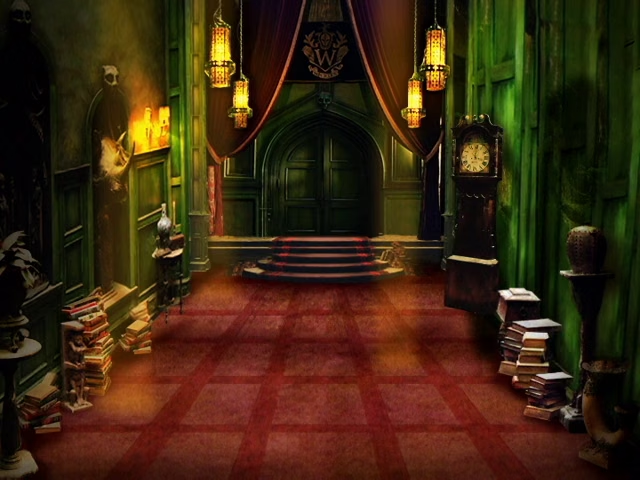
Due to the limitations of DVDs, the entire game is relatively simple in terms of mechanics; however, it is obvious a lot of effort was put into it to make it feel comprehensive, and it really plays to the strengths of the medium with lots of little clips and sections. One section has the player figuring out the path over a trapped floor, and another involves attacking skeletons in a warehouse while not hitting Scooby, just like Whack-A-Mole.
Scooby-Doo 2 also came with a teaser trailer for another movie with a fantastic DVD menu: Harry Potter and the Prisoner of Azkaban. After a little opener showing some clips from the film, the Prisoner of Azkaban’s DVD placed you on the Knight Bus from the film, zooming through the streets of London while the shrunken head quips. Different menus on the DVD stayed true to the theme, with the scene selection being themed after The Daily Prophet newspaper.
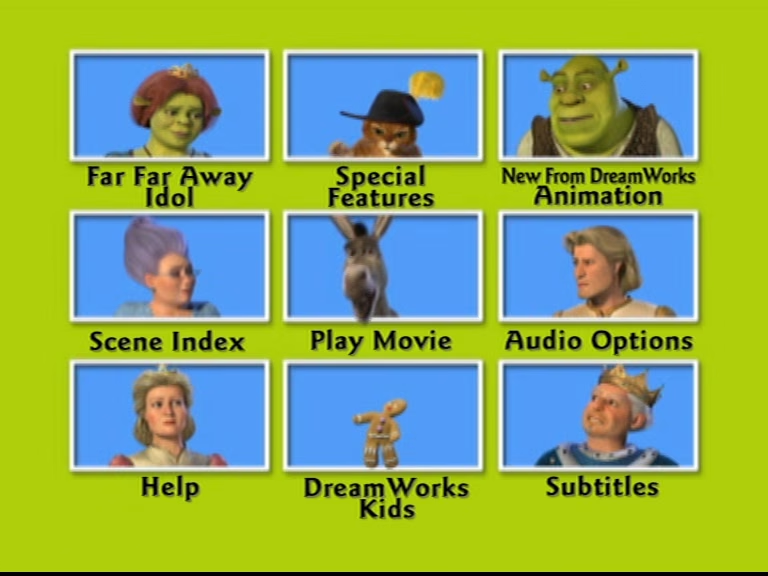
Shrek 2’s original menu is memorable primarily for the main Brady Bunch-esque screen. It features the film’s main characters all quibbling at each other (and particularly with Donkey). The disc is also packed with content, with the ability to view a lot of art, read about the cast and details about the film, listen to music, explore an interactive map, and play multiple games (Far Far Away Idol, Find Puss In Boots, and Save Fiona!), among other things. It is extremely full of things to look through and poke at.
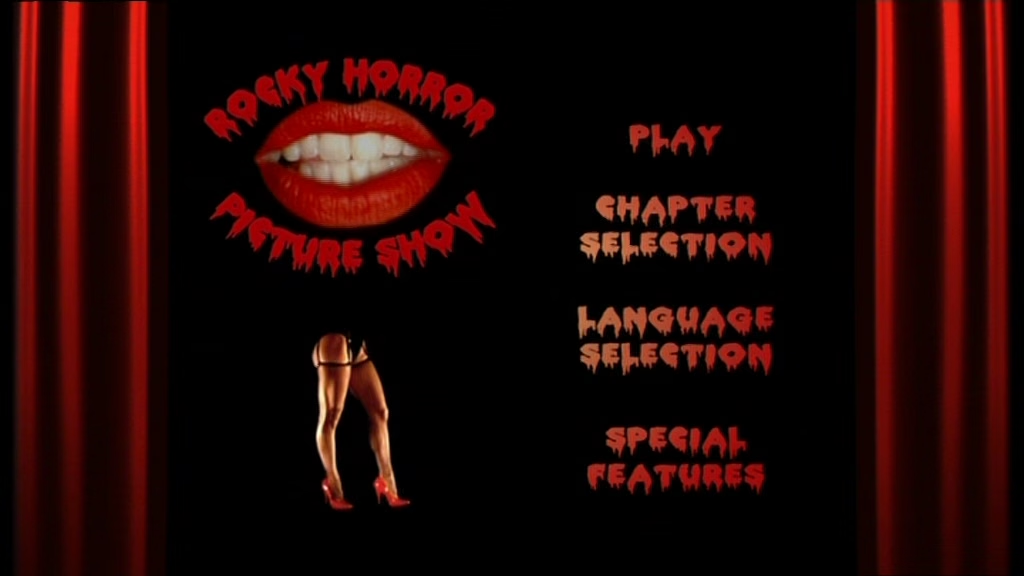
The Rocky Horror Picture Show DVD opens with the iconic lips welcoming you to the DVD. After which you’re presented with the main menu, where a disembodied pair of legs wearing heels and fishnets walks in, kicking around one of the menu items, which begins flipped the wrong way around. The extra features are numerous and play into Rocky Horror’s cult status. Some menu options are accompanied by a large switch which animates when flicked. Throughout much of the menu the lips continue speaking while songs from the film play in the background. The 16:9-only portion of the screen is occupied by red curtains, which slide in and out again when ‘Play Movie’ is selected.
When inserted, Wayne’s World’s DVD menu first shows static before simulating switching through multiple channels and then landing on a channel guide, with plenty of spoof material like fake adverts. In addition to various options like scene selection and subtitle configuration appearing like upcoming television shows across different channels, there are also listings for tonnes of other shows and films which can be scrolled through like a real cable set top box. It is a brilliantly fun interface.
Chitty Chitty Bang Bang has a 3D render of the titular fuel-burning oracle flying through the clouds, with menus superimposed onto it, and Thunderbirds (2004) opens with clips from the film before dropping you into Thunderbird 2’s cockpit with a variety of controls as you fly around, and a voiceover speaks to you while you’re presented with all sorts of information. You could even switch which craft you’re piloting.
DVD releases of Doctor Who following the 2005 revival also had extremely fun interfaces. Many of the DVD releases of both Classic Who and New Who had many hidden secrets and additions included. Different releases vary, but many of the earlier ones were set in the Tardis, with menu items presented on and around the console. Some showed the time vortex and time stream, while they began to simplify a bit during the Peter Capaldi era before slipping into more generic menus, as became common throughout the mid-2010s.
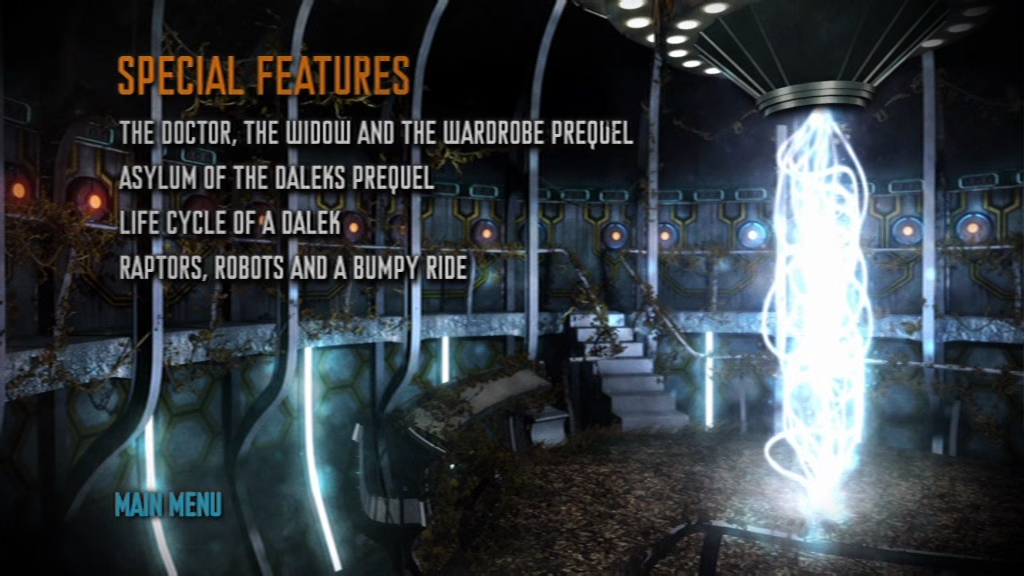
In modern DVD releases, we rarely see any menus of note. DVDs are no longer the dominant format they once were, and companies rarely put effort into their presentation. Despite being a much more capable format from a technical perspective, with high-resolution media, menu layers, everything offered by Blu-ray Disc Java (BD-J) and more, Blu-rays unfortunately very rarely see impressive menu presentations. Modern DVDs and Blu-ray menus alike are often little more than an image or video with a generic menu atop it.
It is understandable. Physical media as a whole is less popular with the mass adoption of streaming services; however, it is a shame to see that the creativity and excitement of the media viewing experience provided by menus replaced by the sterile, generic, one-size-fits-all interfaces of online platforms. If curious, there are a great number of DVD menus to be perused at dvdmoviemenus.com.